
Install IPTV on Firestick the right way with this complete guide from IPMasterTV.com, your trusted source for premium IPTV solutions in Europe and beyond. In this complete guide, you will learn how to install IPTV on Amazon Firestick, with a special focus on the most popular apps: IPTV Smarters Pro and TiviMate, optimized for Firestick 4K and Firestick 4K Max.
This tutorial is beginner‑friendly, fully SEO‑optimized, and compatible with Rank Math requirements.
Why Install IPTV on Firestick?
For official information about Firestick devices and settings, you can consult Amazon’s official documentation:
These external resources help users better understand Fire OS features and improve overall streaming performance.
Amazon Firestick is one of the best devices for IPTV streaming due to its affordability, performance, and flexibility. When combined with a high‑quality IPTV service like IPMasterTV, you gain access to:
- Thousands of live TV channels
- Movies and TV series (VOD)
- Sports, news, and international content
- High‑quality streaming (HD, Full HD, 4K)
Firestick supports multiple IPTV players, making it an ideal choice for IPTV users in Europe.
What You Need to Install IPTV on Firestick
Before starting, make sure you have:
- An Amazon Firestick (Firestick Lite, Firestick 4K, or Firestick 4K Max)
- A stable internet connection (minimum 15 Mbps recommended)
- An active IPMasterTV IPTV subscription
- Login details (Xtream Codes or M3U URL)
Step 1: Prepare Your Amazon Firestick to Install IPTV
- Connect your Firestick to your TV and power source.
- Turn on your TV and select the correct HDMI input.
- Connect the Firestick to Wi‑Fi.
- From the home screen, go to Settings.
Step 2: Enable Apps from Unknown Sources to Install IPTV on Firestick
IPTV apps are not always available on the Amazon Appstore. You must enable third‑party installations.
- Go to Settings > My Fire TV
- Select Developer Options
- Click Install Unknown Apps
- Enable permission for Downloader
This step is mandatory for installing IPTV apps.
Step 3: Install the Downloader App on Firestick
Downloader allows you to install IPTV apps using APK files.
- From the Firestick home screen, click Find / Search
- Search for Downloader
- Install the app from Amazon Appstore
- Open Downloader and allow permissions
Step 4: Install IPTV Smarters Pro on Firestick (Best IPTV App)
IPTV Smarters Pro is a well-known IPTV player. You can learn more about the app from its official website:
Why Choose IPTV Smarters Pro?
IPTV Smarters Pro is one of the most popular IPTV players. It supports live TV, VOD, series, and EPG.
Installation Steps
- Open Downloader
- Enter the download code or APK URL provided by IPMasterTV
- Click Go
- Install the application
- Delete the APK file after installation
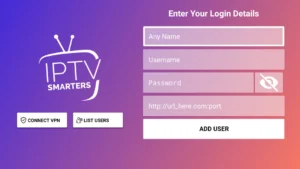
IPTV Smarters Login (Recommended)
- Open IPTV Smarters Pro
- Select Login with Xtream Codes API
- Enter:
- Server URL
- Username
- Password
- Click Add User
Your IPTV channels will load automatically.
Step 5: Install TiviMate on Firestick 4K & 4K Max
TiviMate is one of the most advanced IPTV players available. Official information is available here:
Why Use TiviMate?
TiviMate is ideal for Firestick 4K and 4K Max users. It offers:
- Advanced EPG
- Smooth interface
- Excellent performance for live TV
Installation Steps
- Open Downloader
- Enter the TiviMate APK URL or code
- Install the app
- Launch TiviMate
TiviMate IPTV Setup
- Select Add Playlist
- Choose Xtream Codes Login or M3U URL
- Enter your IPMasterTV credentials
- Load channels and EPG
IPTV on Firestick 4K: Best Settings for Smooth Streaming
For best performance on Firestick 4K:
- Video resolution: Auto or 4K
- Enable hardware decoding
- Use wired Ethernet if possible
- Close background apps
Common IPTV Issues on Firestick (And Fixes)
Buffering Problems
- Check internet speed
- Restart Firestick
- Change video player settings
App Not Installing
- Re‑enable unknown sources
- Clear Downloader cache
Channels Not Loading
- Verify IPTV credentials
- Restart IPTV app
Is IPTV Legal?
IPTV technology itself is legal. However, you must use a provider that complies with copyright regulations. IPMasterTV focuses on reliable service and transparency for European users.
Why Choose IPMasterTV?
- High‑quality European IPTV servers
- Stable streaming with minimal buffering
- Compatible with Firestick, Smart TV, Android, iOS
- Professional customer support
Final Thoughts: Install IPTV on Firestick with IPMasterTV
For more IPTV tutorials and troubleshooting guides, visit our internal resources:
- How to Install IPTV on Smart TV (Samsung & LG)
- IPTV Encoders, IPTV Services, and Professional Streaming Solutions
- Best IPTV Services 2026
Installing IPTV on Amazon Firestick is simple when you follow the correct steps. Whether you choose IPTV Smarters Pro or TiviMate, IPMasterTV ensures a smooth and premium streaming experience.
If you are looking for a reliable IPTV service optimized for Firestick, IPMasterTV.com is your best choice.